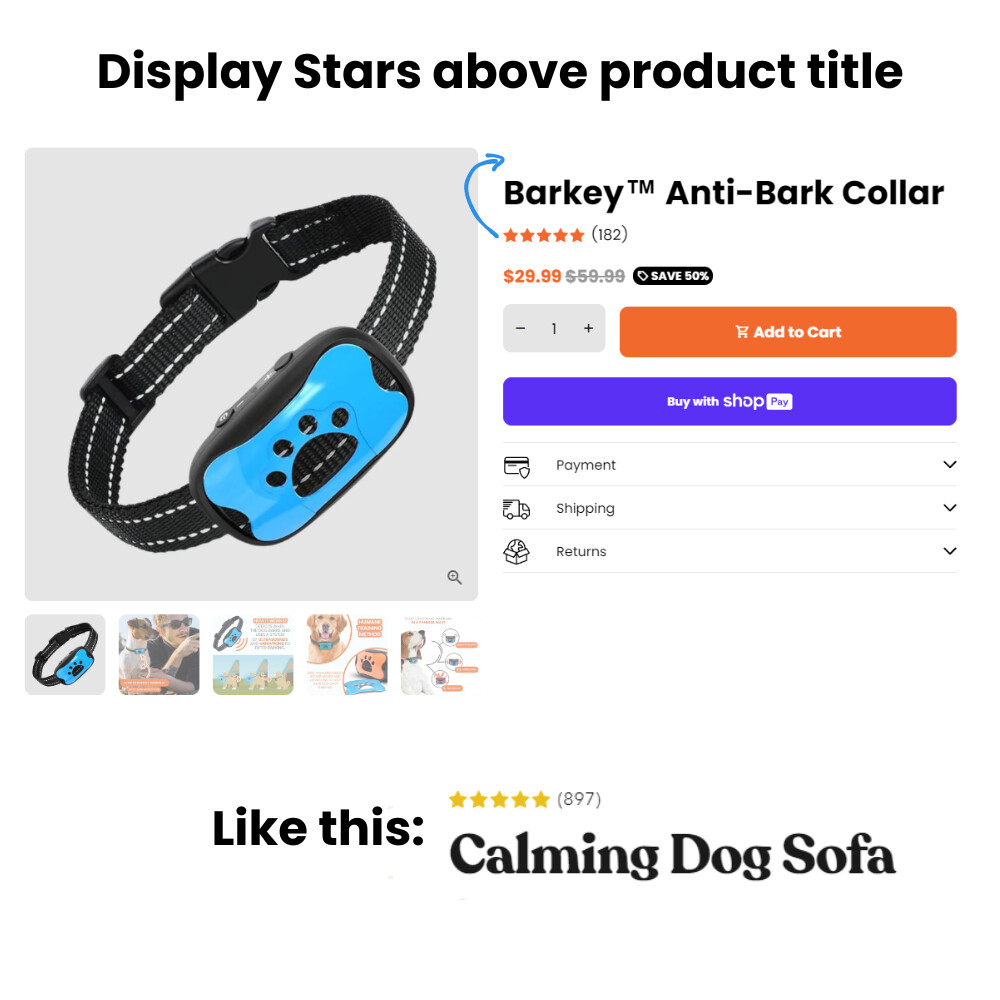
Hello, I am using a Debutify theme for my Shopify store and would like to change the positioning of the Rating stars that display on the product page. I am currently using Loox Reviews and would like the stars to be positioned above the product name, as opposed to underneath the product name.
1 Like
Hi @robertbarta
Check this one.
- From your Shopify admin dashboard, click on “Online Store” and then “Themes”.
- Find the theme that you want to edit and click on “Actions” and then “Edit code”.
- In the “Assets” folder, click on “base.css, style.css or theme.css” file, depending on which file your theme uses to store its CSS styles. At the bottom of the file, add the following CSS code:
.product-single__meta {
    display: flex;
    flex-direction: column;
}
#ProductMeta-template--21755970388270__main > div > div:nth-child(2) {
    order: 1;
}
#ProductMeta-template--21755970388270__main > div > div:nth-child(1) {
    order: 2;
}
#ProductMeta-template--21755970388270__main > div > div.product-single__meta-info {
    order: 3;
}
-
And Save.
-
Result:


Please don’t forget to Like and Mark Solution to the post that helped you. Thanks!
1 Like
I’m not seeing the “base.css, style.css or theme.css” file. The closest one to any of those in the assets folder is theme.scss.liquid
I tried pasting the code at the bottom of the theme.scss.liquid file but it didn’t do anything
I am using a Debutify theme, which I know is sometimes different from other themes.
1 Like
You dont have the theme.scss.css in the asset folder?
If not place this code below on the theme.liquid.
- From your Shopify admin dashboard, click on “Online Store” and then “Themes”
- Find the theme that you want to edit and click on “Actions” and then “Edit code”.
- In the “theme. Liquid” file. Find the tag and paste the code below before the tag.
- And Save.
Please don’t forget to Like and Mark Solution to the post that helped you. Thanks!
1 Like
Yes, that looks great thank you! Is it possible to reduce the extra spacing above/below the stars? If there’s a way to make the top of the stars flush with the product photos that would be awesome.
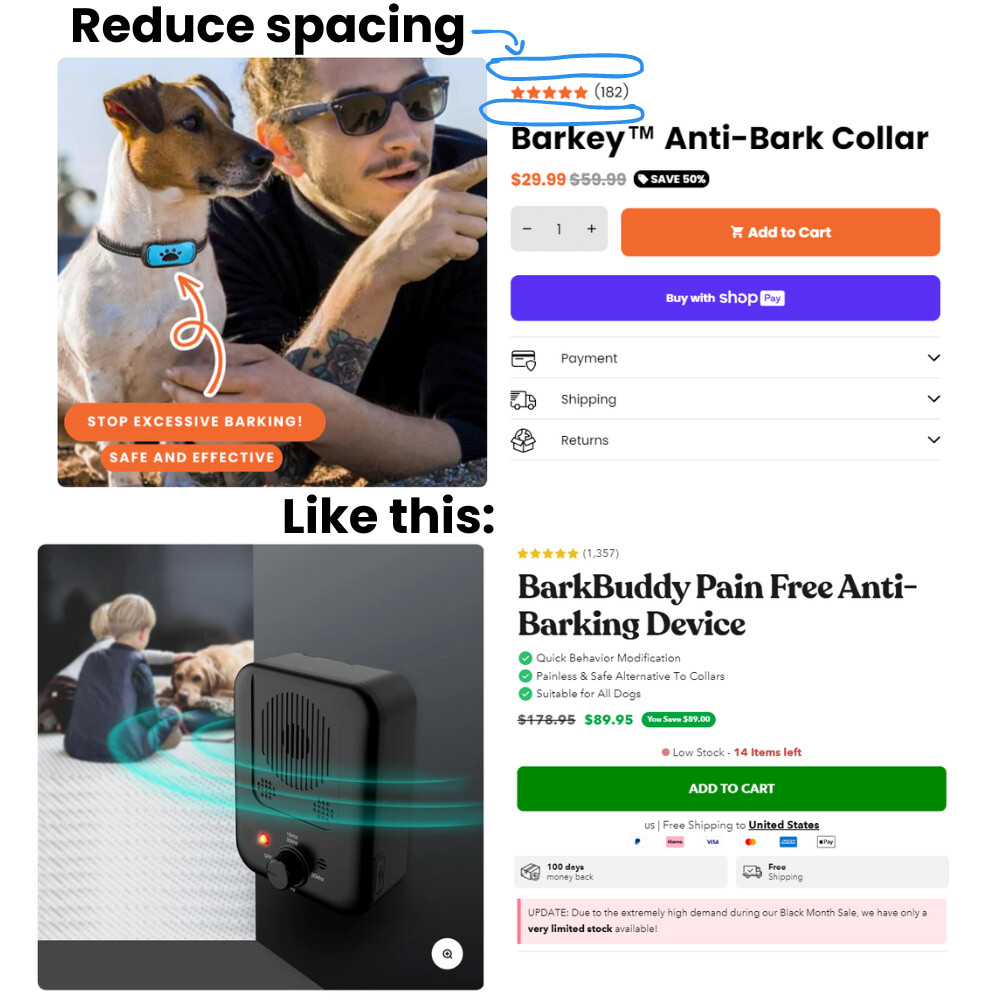
If you want to mess around with the code, the collaboration code is 4740
Sure, paste this code below before the continue to the code that i give recently.
.product-single__meta--wrapper {
    margin-top: 0px !important;
}
.spacer-bottom {
    margin-bottom: 0px !important;
}
And Save.
Oh, No this problem dont need a collaborator.
Please don’t forget to Like and Mark Solution to the post that helped you. Thanks!
1 Like
Also, it only applied to one product for some reason. Are you able to apply it to all products as well as future products?
Okay, that looks great! However, it is only applying it to one product and it also messes with the “add to cart button”


Okay, that looks great! However, it is only applying it to one product and it also messes with the “add to cart button”
1 Like
Oh, Sorry I only pointing one product. It got out on my mind. Replace with this one,.
And Save.
The add to cart button moved when we take out the space below the star reviews. I add some code to also to make it align. But check it on my end its going down. in your screen it going up.
Please don’t forget to Like and Mark Solution to the post that helped you. Thanks!
1 Like
Oh yeah, that’s perfect. I really appreciate you!
1 Like