Hi, I’m building a store with Dawn theme and have loaded in a photo for the homepage. It is showing darker than the original photo and I’m wondering if this is built into the theme. The sample of the theme shopify shows me seems to also be darkened. Is there a way to remove whatever filter is there?
Topic summary
A user building a Shopify store with the Dawn theme noticed homepage photos appearing darker than the originals, suspecting a built-in filter or overlay effect.
Three solutions were provided:
-
Custom CSS approach: Add CSS code to the Theme settings > Custom CSS section to remove the background overlay entirely using
.banner::afterand.banner__media::afterselectors. -
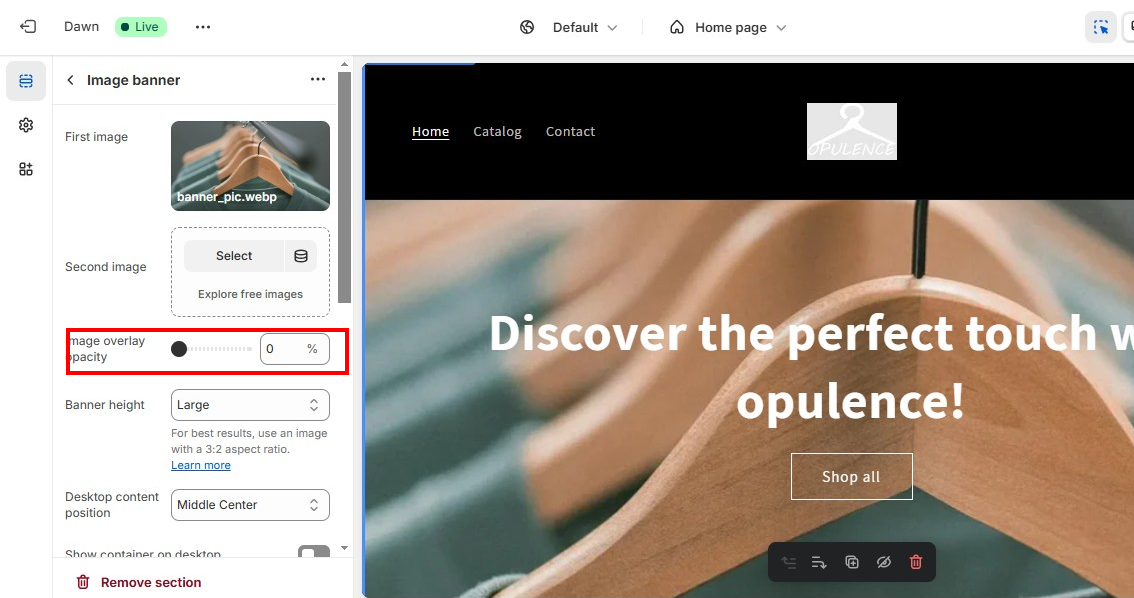
Built-in opacity control: Navigate to the Image banner section in the theme customizer and adjust the “Image overlay opacity” slider to reduce or eliminate the darkening effect.
-
Visual adjustment: Similar to solution #2, locate the overlay opacity setting within the image banner section settings.
All responses included screenshots demonstrating the settings location and expected results. The issue stems from Dawn theme’s default image overlay feature, which can be adjusted through theme settings or removed via custom CSS.
1 Like
Hi @doraoh
You can follow the instruction below:
-
Go to Shopify > Theme > Customize
-
Copy and paste this code on Theme settings > Custom CSS section
.banner::after, .banner__media::after {
    background: none !important;
}
Here is the result:

I hope it helps.
Liz
Hello @doraoh ,
-
Go to Shopify → Theme → Customize ->Click to Image banner section → Find Image overlay opacity
-
You can adjust the opacity of the image
-
Click to save

Hi @doraoh

If my reply is helpful, kindly click like and mark it as an accepted solution.
If you are happy with my help, you can help me buy a COFFEE
Thanks!
1 Like