
Dawn Theme
Topic summary
A user asked how to replace Shopify’s “Buy it now” button with a custom button linking to an external URL.
Solutions provided:
-
Method 1 (Huptech-Web): Comment out the buy now button in
main-product.liquidand add custom code with an anchor tag. Includes detailed Liquid template code for creating a custom button block with schema settings, plus CSS styling. -
Method 2 (aditya58singh): Edit the product template file (e.g.,
product-template.liquidorproduct.liquid) by locating the “Buy It Now” button code and replacing it with a custom HTML anchor button. Add CSS styling in the theme’s stylesheet for visual customization.
Both approaches involve:
- Accessing theme code via Shopify admin (Actions → Edit code)
- Modifying Liquid template files
- Adding custom CSS for button styling
- Using anchor tags (
<a>) to redirect to desired URLs
Outcome: The original poster confirmed the solution worked successfully.
1 Like
Hi @ayushsah ,
Yes, it is possible You just need to comment on the buy now button, add a button with an anchor tag, and add your link to it.
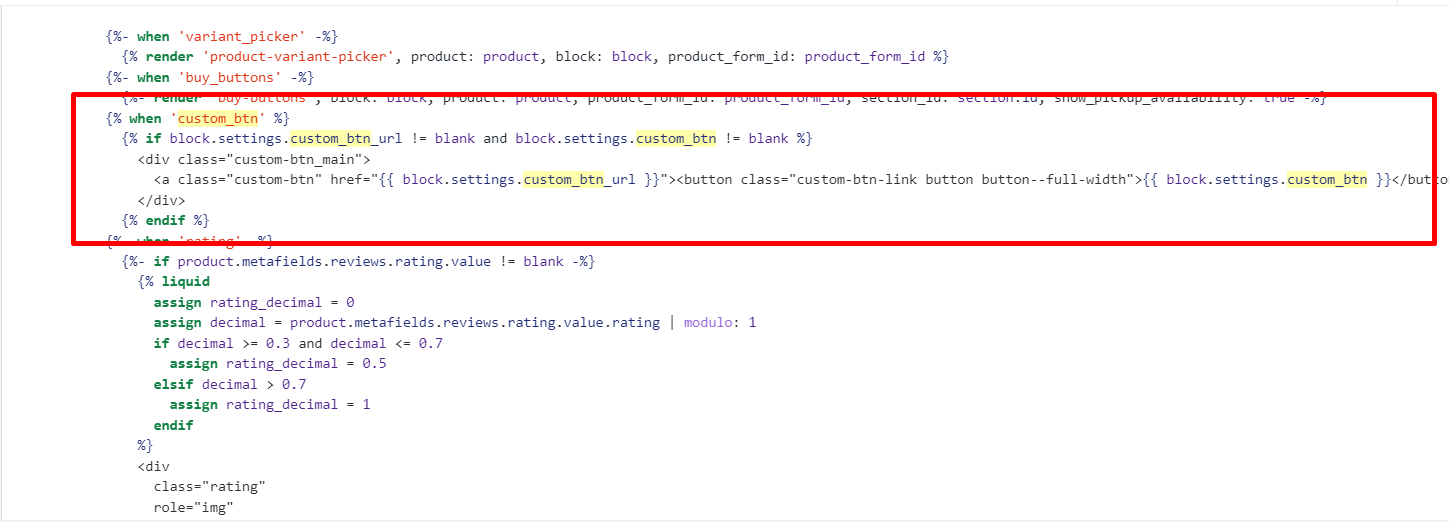
Add the below code to the “main-product.liquid”.
/* Add the bellow code after the buy_buttons condition */

{% when 'custom_btn' %}
              {% if block.settings.custom_btn_url != blank and block.settings.custom_btn != blank %}


              {% endif %}

/* Add the below schema to the blocks */

{
      "type": "custom_btn",
      "name": "Custom Button",
      "limit": 1,
      "settings": [
        {
          "type": "text",
          "id": "custom_btn",
          "label": "Custom Button",
          "info": "Add Button Label"
        },
        {
          "type": "url",
          "id": "custom_btn_url",
          "label": "Custom Button Link",
          "info": "Add Button Link"
        }
      ]
    }

/* Add the CSS to the file with style tag */

.product__info-container .product-form {
  margin: 1.5rem 0;
}
.custom-btn_main .custom-btn {
  text-decoration: none;
}


1 Like
Hi @ayushsah
If the solution provided has resolved your issue, kindly consider accepting the answer. This will assist other community members and developers in finding this solution in the future.
Hi @ayushsah
This can be done by editing the Liquid template files of your Shopify theme. Here’s how you can achieve this:
- In the ‘Themes’ section, choose your current theme, click on ‘Actions’, and then ‘Edit code’.
- Find the file that contains the code for the product page. This is often named product-template.liquid, product.liquid, or something similar. It can usually be found in the ‘Sections’ or ‘Templates’ folder.
- Locate the section in the file where the “Buy It Now” button is coded.
- Add your custom button code. For example:
Your Custom Button Text
If you want to style your button to match your theme’s style, you can add custom CSS in your theme’s CSS file (theme.scss.liquid or similar).
.custom-button {
    background-color: #4CAF50; /* Green background */
    border: none; /* No border */
    color: white; /* White text */
    padding: 12px 24px; /* Top and bottom padding, left and right padding */
    text-align: center; /* Center-aligned text */
    text-decoration: none; /* No underlines on the text */
    display: inline-block; /* Inline-block element */
    font-size: 16px; /* Medium font size */
    margin: 4px 2px; /* Margin around the button */
    transition-duration: 0.4s; /* Smooth transition for hover effect */
    cursor: pointer; /* Pointer cursor on hover */
    border-radius: 8px; /* Rounded corners */
}

.custom-button:hover {
    background-color: #45a049; /* Darker shade of green on hover */
    color: white; /* White text on hover */
}
Thank you !!! 
1 Like