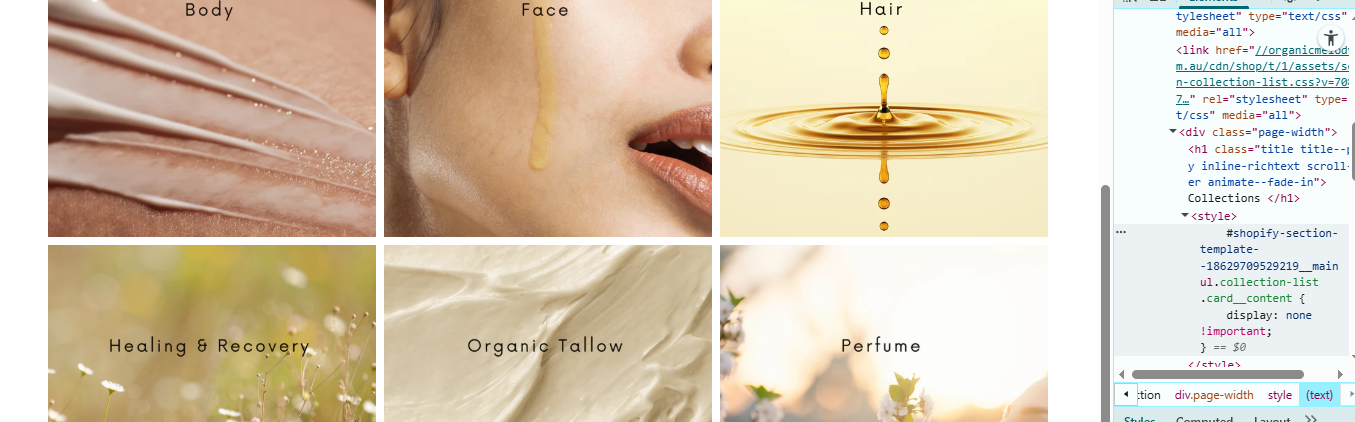
Hi Guys, I was just wondering how to remove the headings underneath the images from my collections page as I already have a description in the image (I have already done this on the home page but seems like I may have to do again). Thanks in advance for any help 
Topic summary
A Shopify store owner wants to remove collection titles that appear beneath images on their collections page, since the images already contain descriptive text.
Initial Solutions:
- Multiple helpers provided CSS code snippets to hide the titles
- Early solutions successfully removed the headings but had unintended side effects
Core Problem:
- The provided code removed headings from all products across the store, not just the collections page
- User specifically needs the code to target only collection headings while preserving product titles elsewhere
Current Status:
- websensepro provided increasingly specific CSS selectors targeting the collections page template ID
- The code appears to work in websensepro’s testing (screenshots provided showing successful implementation)
- However, the original poster reports the solution still doesn’t work when they implement it in their base.css file
- Discussion remains unresolved with a potential implementation issue on the user’s end, despite the code appearing functionally correct
1 Like
Hello @jackthomasp
Can you please share your store URL?
Hi @jackthomasp ,
- Go to Online Store → Theme → Edit code.
- Open your theme.css / based.css file and paste the code in the bottom of the file.
.card--card.card--media>.card__content {
    display: none !important;
}
Thanks!
sorry my mistake
1 Like
sorry my mistake www.organicmelody.com.au
Hey @jackthomasp
Follow these Steps:
-
Go to Online Store
-
Edit Code
-
Find password.liquid file
-
Add the following code in the bottom of the file above tag
RESULT

If I managed to solve your problem then, don’t forget to Like it and Mark it as Solution!
Best Regards,
Moeed
Thanks mate that worked, would you also know how to remove the grey area so all the images are close up against each order with no borders and remove the bit entirely where the headings used to be
1 Like
Hey @jackthomasp
Replace the previous code with this code below.
RESULT

If I managed to solve your problem then, don’t forget to Like it and Mark it as Solution!
Best Regards,
Moeed
Your a legend mate! Thanks for the help
Actually it has now removed the headings from all the products now, is it possible to remove the headings only for the collection headings. Thanks
Hi @jackthomasp,
- Go to Online Store → Theme → Edit code.
- Open your theme.css / based.css file and paste the code in the bottom of the file.
.card--card.card--media>.card__content {
    display: none !important;
}
hi mate that didn’t work unfortunately, thanks though
.collection-list .card__content {
    display: none !important;
}
Hi mate, unfortunately it has removed the headings for all the products too, it seems very close though Is there a way to apply that code only to the collections page? Thanks so much
#shopify-section-template--18629709529219__main ul.collection-list .card__content {
    display: none !important;
}
thanks mate but didn’t seem to work, was that in the base.css?
Yes
Add this code
#shopify-section-template--18629709529219__main ul.collection-list .card__content {
    display: none !important;
}
thanks but didn’t work unfortunately
This code only works on the collection page. @jackthomasp
#shopify-section-template--18629709529219__main ul.collection-list .card__content {
    display: none !important;
}