How can I add a custom SVG icon to my website's cart?

Topic summary

A user needs to replace their website’s default cart icon in the header with a custom SVG image. They’ve identified the relevant Liquid file (header.liquid) but are unsure how to implement the change.

Solutions provided:

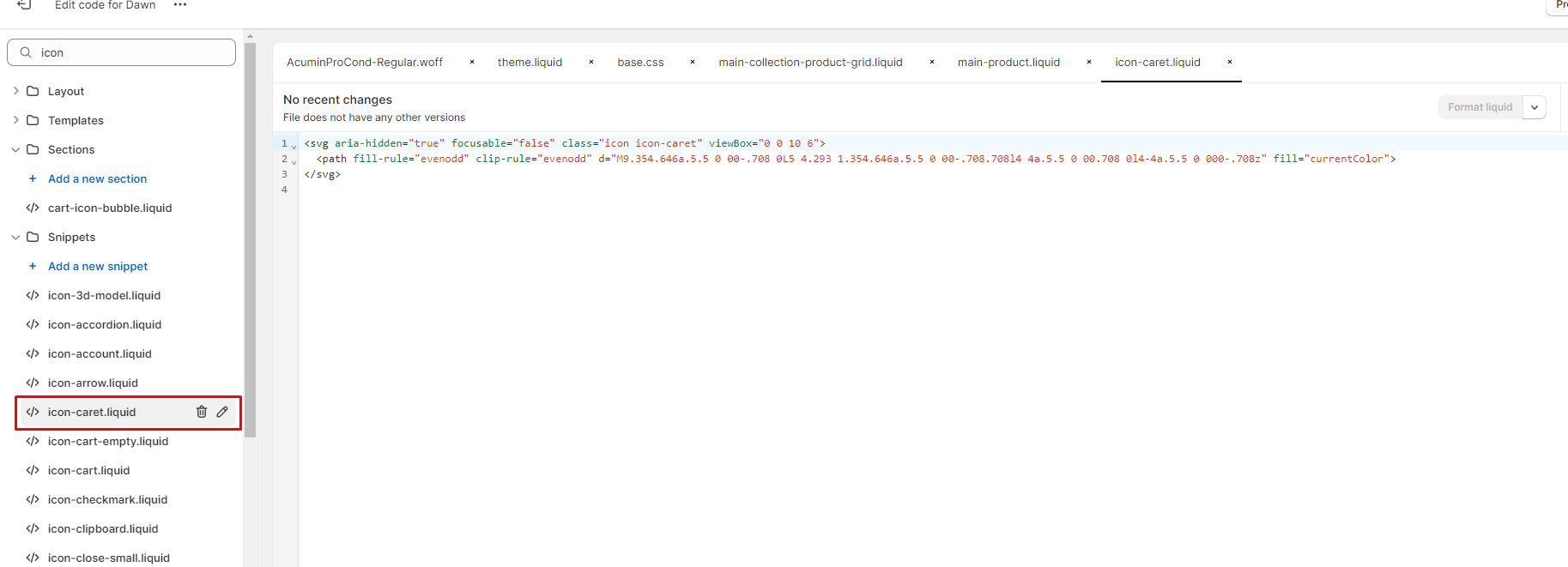
  • One suggestion is to modify the icon-cart.liquid file directly and add the custom SVG code there
  • Another approach involves adding code to the theme.liquid file after the <head> tag

Follow-up issue:
After implementing one solution, the user encountered a sizing problem—the custom shopping bag icon appears too large and doesn’t align properly with the navigation links. They’ve tried multiple methods to resize it but continue facing issues.

A response with updated code to fix the sizing problem was being provided but appears incomplete in the thread. The discussion remains ongoing with the alignment/sizing issue unresolved.

Summarized with AI on November 14. AI used: claude-sonnet-4-5-20250929.

Hello, I need help adding a custom SVG icon to replace the current cart in the header of my website. I found the snippet of the liquid file that the image URL needs to be added to, but not sure where and how to add. Any help?

Here is the Liquid file, header.liquid

- {{ cart.item_count }}


Here is my Image Source for the SVG

https://cdn.shopify.com/s/files/1/0783/3406/6984/files/Shopping_Bag_Empty_2.svg?v=1699543060

https://2d26b3.myshopify.com/

PW: reishi

@JhordanMSUITE , Go to icon-cart.liquid and add your svg there:

Hi @JhordanMSUITE

Go to your Online store > Themes > Edit code, open theme.liquid file, add this code after tag


@Dan-From-Ryviu Hi Dan, Thank you for your help! Do you mind showing me how to make the shopping bag smaller in size, so it is inline with the navigation links. I’ve tried couple of methods and running into a few issues. I have an example below.

Hi @JhordanMSUITE

Please update code