Please help. I have a custom photo magnet website. I am trying to update it so the photos customers enter can be previewed as a thumbnail and not a file name? Also I want the same thumbnail to show up when they are in checkout.
Topic summary
Goal: Show customer-uploaded photos as thumbnails on the product page and in checkout, instead of file names.
Constraints: Checkout customization is restricted on standard Shopify. Custom code can’t run there unless on Shopify Plus. Thumbnails can be shown in the cart/cart drawer via theme code and line item properties.
Theme-code approaches:
- Product page: Use a file input with JavaScript FileReader to display an on-page thumbnail preview. Store the Base64 preview in a hidden line item property (e.g., “Preview”) so it can be rendered later.
- Cart: In the cart loop, render the “Preview” property as an
. Alternatively, modify cart-products.liquid to detect image URLs in properties (e.g., ‘/uploads/’, ‘uploadery’, ‘.jpeg’) and show small images. A reference snippet and GitHub link were provided.
App-based options (no-code):
- Teeinblue Product Personalizer: Live photo preview on the product mockup; claims the design shows in checkout; extra effects and text options.
- Easify Product Options: Multiple upload slots with instant thumbnail previews; optional live preview area; zero coding.
Status: OP will try solutions and report back. No confirmed resolution yet. Code snippets and screenshots are central to implementation.
1 Like
I think so. I would love a break down and even what I would need to add to the code? I am so new and have no clue so any help is super appreciated.
Thanks!
You can’t do anything to checkout. So it will use the same product variant image it does now and list your uploaded images in the same way.
You can, however, show small images in your cart drawer/on the cart page.
The code to modify is here:
You can try changing it like this to start with:
{%- for property in item.properties -%}
  {%- assign property_first_char = property.first | slice: 0 -%}
  {%- if property.last != blank and property_first_char != '_' -%}
    <div class="cart-items__properties">
      <dt>{{ property.first }}:</dt>
      <dd>
        {%- if property.last contains '/uploads/' -%}
          <a href="{{ property.last }}">{{ property.last | split: '/' | last }}</a>

        {% elsif property.last contains 'uploadery' and property.last contains '.jpeg' %}
          <a href="{{ property.last }}">
            <img
              src="{{ property.last }}" width=50 height=50
              alt="{{ property.last | split: '/' | last }}"
            />
          </a>

        {%- else -%}
          {{ property.last }}
        {%- endif -%}
      </dd>
    </div>
  {%- endif -%}
{%- endfor -%}
1 Like
Hi @mmmmagets
1. Show Thumbnail Preview on Product Page (Instead of File Name)
You need a custom <input type="file"> script that:
- detects when a customer uploads an image
- reads it using JavaScript FileReader
- shows a thumbnail preview in the product form
- stores the image so Shopify can send it to checkout/cart
Add this to your product form (product-template.liquid or main-product.liquid):
<div class="custom-upload-wrapper">
  <input type="file" id="custom-image" name="properties[Uploaded Photo]" accept="image/*">
  <img id="preview-image" style="display:none; max-width:120px; margin-top:10px;" />
</div>

<script>
document.getElementById("custom-image").addEventListener("change", function(event) {
  const file = event.target.files[0];
  if (!file) return;

  const reader = new FileReader();
  reader.onload = function(e) {
    const img = document.getElementById("preview-image");
    img.src = e.target.result;
    img.style.display = "block";
  };
  reader.readAsDataURL(file);
});
</script>
Result:
- Customer uploads image → thumbnail appears instantly.
- No file name shown → only thumbnail.
2. Show the Same Thumbnail in Cart & Checkout
Shopify allows you to attach uploaded images as line item properties, but to show thumbnails, we need to store the Base64 preview.
Add this inside the FileReader script:
document.querySelector('input[name="properties[Preview]"]').value = e.target.result;
So update your product form to include a hidden input:
<input type="hidden" name="properties[Preview]" id="preview-base64">
Update JS:
document.getElementById("custom-image").addEventListener("change", function(event) {
  const file = event.target.files[0];
  if (!file) return;

  const reader = new FileReader();
  reader.onload = function(e) {
    document.getElementById("preview-image").src = e.target.result;
    document.getElementById("preview-image").style.display = "block";
    document.getElementById("preview-base64").value = e.target.result;
  };
  reader.readAsDataURL(file);
});
3. Show Thumbnail in Cart (cart.liquid)**
Inside your cart loop where line item properties appear, add this:
{% if p.first == 'Preview' %}
  <img src="{{ p.last }}" style="max-width:100px; margin-top:5px;">
{% endif %}
Checkout Thumbnail Limitation
Shopify does not allow custom code inside checkout unless you are on Shopify Plus.
But you can still show it in the Order Confirmation Email or Thank You Page if needed.
Best regards,
Devcoder 
1 Like
Thank you to everyone for your solutions. I will try it and report back! Thanks!!
Hey there! 
To do this natively on Shopify, you’d likely need to add custom code to both your product page and checkout, which can get a bit technical and tricky to maintain.
If you’re looking for a more versatile solution without the coding hassle, consider using Teeinblue Product Personalizer.
With our app:
-
Customers upload their photo and see a live preview directly on the product mockup so they know exactly how their custom magnet will look. No file name shows!
-
The design shows up in checkout so customers can confirm their customization before completing the purchase
-
Add photo effects like AI-generated cartoon, watercolor, background removal, and more
-
Additional personalization options such as adding custom text, choosing fonts, etc.
Here’s an example of the photo upload with live preview in action. Many of our merchants use these features to sell personalized products, including ornaments and magnets.

And here’s how the final personalized design shows up in the cart, so customers can see exactly what they’re ordering

It’s a great fit for photo-based products like custom magnets, and super easy to set up!
Feel free to check it out or reach out to our team if you have any questions. Happy to help!
Best of luck with your store! 
1 Like
Hi @mmmmagets 
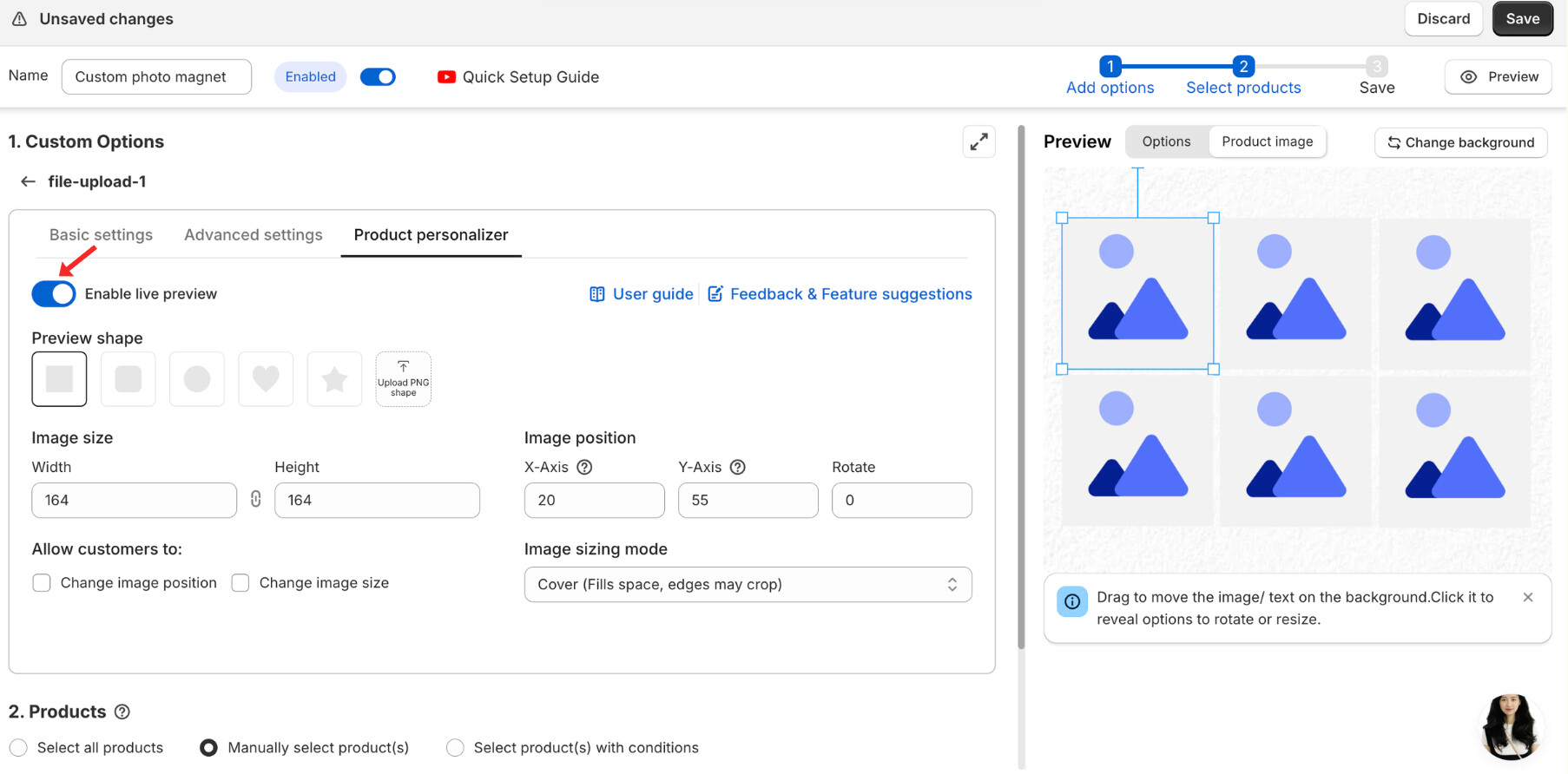
I can see you’re trying to update your website so that the photos customers upload show as thumbnails instead of just file names. The good news is that Easify Product Options can do exactly that - with zero coding required.
I created a quick demo using Easify (based on the example you shared above), featuring 6 upload slots. Each uploaded image is displayed as a clean, clear thumbnail preview, making the interface much more user-friendly and visually appealing.
- This is the result:

- This is the app setting:

With Easify’s File Upload option, every image a customer uploads is instantly displayed as a thumbnail. This makes it easy for them to clearly see which photo they’ve selected - perfect for products like photo magnets, canvases, posters, and other image-based custom items.

For a more visual and intuitive experience, simply go to Options → Product Personalizer and enable Live Preview. Once this feature is turned on, uploaded images will appear inside a larger preview area, allowing customers to see the overall layout clearly and professionally. This is especially useful when showing a real-time preview of a magnet design or any other image-based customizable product.
The app offers a smooth and user-friendly experience for all your customizable products. Plus, the Easify team is always available to lend a hand whenever you need it. 