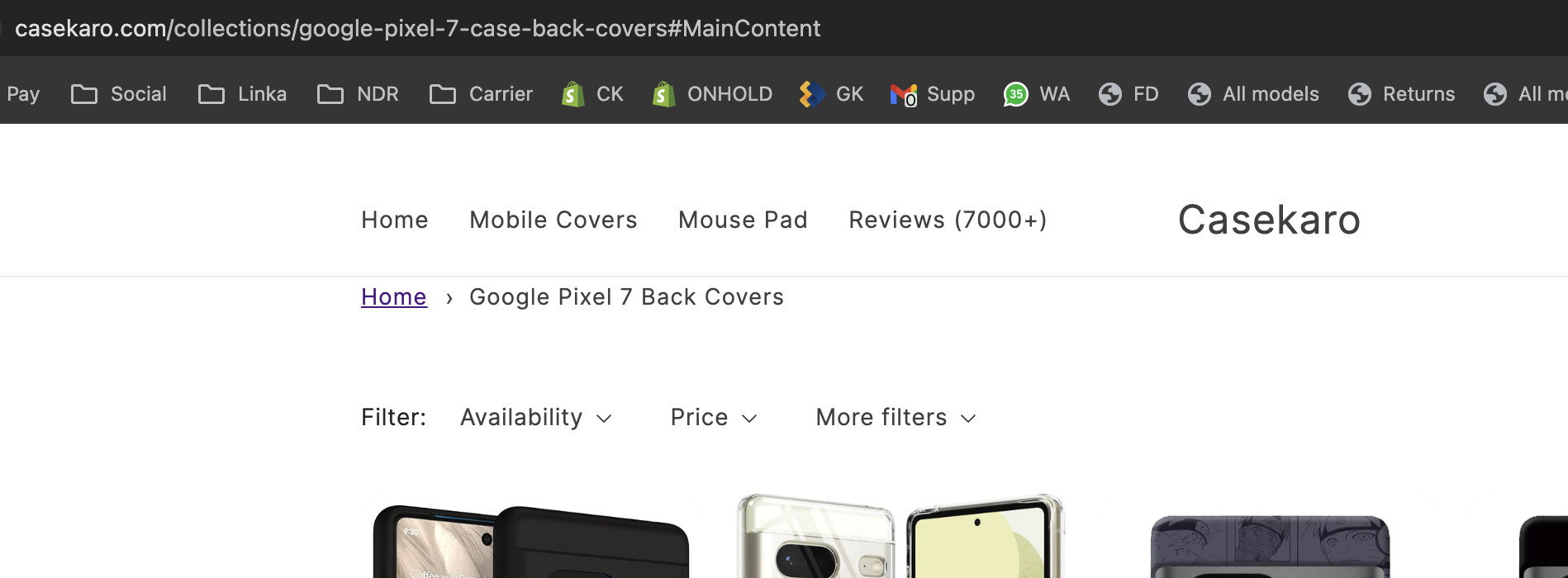
Have you ever been lost on a website? You are looking for a product to buy online and come across an online store that sells the product you were looking for. You wanted to see what else the store offered, from page to page you finally decided to buy another product you had seen a few minutes earlier.
Unfortunately, you couldn’t find the product easily because you felt lost among all those dozens of products that the site offers. How did you feel? Imagine how you felt at that moment. Well, you should know that your customers feel more than twice as much as you did.
This is where breadcrumb navigation comes in. They are there to make it easier for your customers to navigate through your online store without feeling lost.

To add breadcrumb navigation to your Shopify store theme, follow the next steps below.
Step 1: Open the code editor
- From your Shopify admin, go to Online Store > Themes.
- Click Actions > Edit code.
The code editor shows a directory of theme files on the left, and a space to view and edit the files on the right.
Step 2: Generate a brand-new snippet for the breadcrumbs code
In the snippets’ directory create a new file called breadcrumbs.liquid
Step 3: Copy the Liquid code given below and paste it into the code editor for the breadcrumbs.liquid snippet
{% unless template == 'index' or template == 'cart' or template == 'list-collections' or template == '404' %}

{% assign t = template | split: '.' | first %}

{% endunless %}
Hit Save to get your changes confirmed and applied to breadcrumbs.liquid.
Step 4: Add the snippet into layout.liquid
{% include 'breadcrumbs' %}
Tap theme.liquid to open it in the code editor. Include the snippet for all the pages of our site. The best place to output the breadcrumb snippet is above {{ content_for_layout }} in the theme.liquid file, just inside your main content wrapper. To output our breadcrumbs’ snippet, add the above code where you wish them to appear and hit Save:

Step 5: Adding CSS (Styles) breadcrumb navigation code
Add the following CSS to the bottom of theme.css.liquid or theme.css, and hit Save, to style the breadcrumbs we’ve made. The name of the stylesheet can vary for different themes, so if you cannot find theme.scss.liquid, then look for one of the following:
- style.scss.liquid or style.css
- styles.scss.liquid or styles.css
- theme.css.liquid or theme.css
- timber.scss.liquid or timber.css
/* Breadcrumbs' styles */
.breadcrumbs {
  font-size: .85em;
  margin: 0 0 2em;
}

.breadcrumbs ol {
  list-style-type: none;
  margin: 0;
  padding: 0;
}

.breadcrumbs li {
  display: inline-block;
}

.breadcrumbs a {
  text-decoration: underline;
}

.breadcrumbs li:not(:last-child):after {
  content: "›\00a0";
  display: inline-block;
  padding-left: .75ch;
  speak: none;
  vertical-align: middle;
}

.breadcrumbs [aria-current="page"] {
  color: inherit;
  font-weight: normal;
  text-decoration: none;
}

.breadcrumbs [aria-current="page"]:hover,
.breadcrumbs [aria-current="page"]:focus {
  text-decoration: underline;
}

Congratulations! Once you have completed step 5, you can consider that your breadcrumb is already up and running. The next step is optional and will give you the power to enable/disable your breadcrumbs at will.
Step 6: Giving to yourself the power to enable/disable breadcrumb navigation globally on your website (Optional)
Instead of adding {% include ‘breadcrumbs’ %} as specified in step 4, add the below snippet:
{% if settings.show_breadcrumb_nav %}
  {% include 'breadcrumbs' %}
{% endif %}

Then inside your settings_schema.json file, located in the config directory of your theme, add the following setting for Navigation:
{
    "name": "Navigation",
    "settings": [
      {
        "type": "checkbox",
        "id": "show_breadcrumb_nav",
        "label": "Show breadcrumb navigation"
      }
    ]
  },

To enable/disable globally your breadcrumb, follow the lines specified below:
- From your Shopify admin, go to Online Store > Themes.
- Find the theme that you want to edit, and then click Customize.
When you first open the theme editor, the sections for the home page are shown like specified below, hit Theme Settings:

From the Theme Settings page, Hit Navigation like below:

From the Navigation page, enable/disable Breadcrumb and hit Save like below:

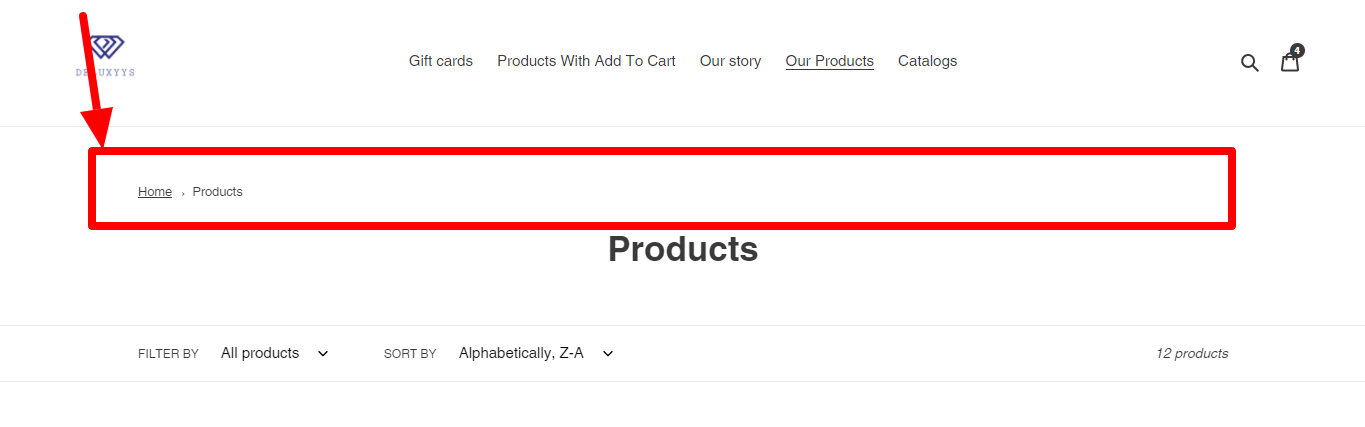
See an overview of what we have built:
At Accomplishify, a Shopify eCommerce development company in Melbourne, we hope following this resource helps provide you better user experience on your Shopify store. The journey ends here for this tutorial. But this was just one more step for you in the race to make your online store better. Here are some other tutorials to help you in your race.
If you have any questions, don’t hesitate to contact us, either from the contact section.