Hi
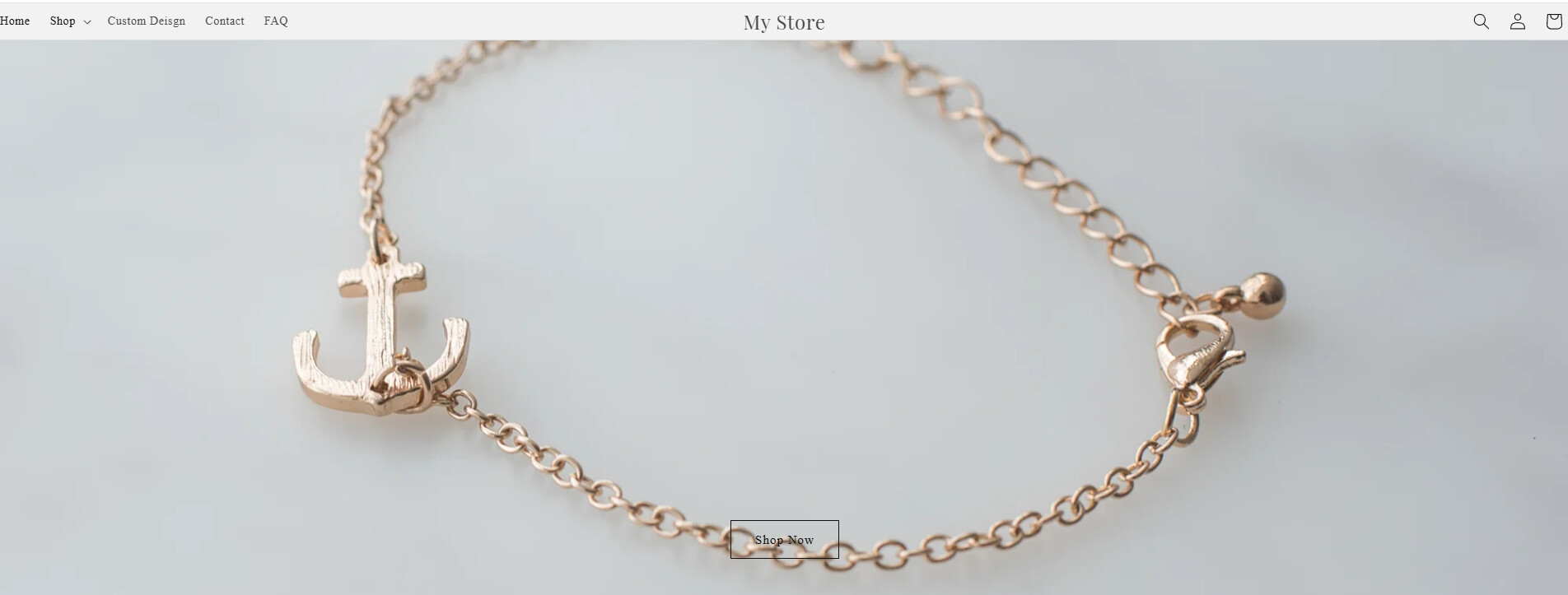
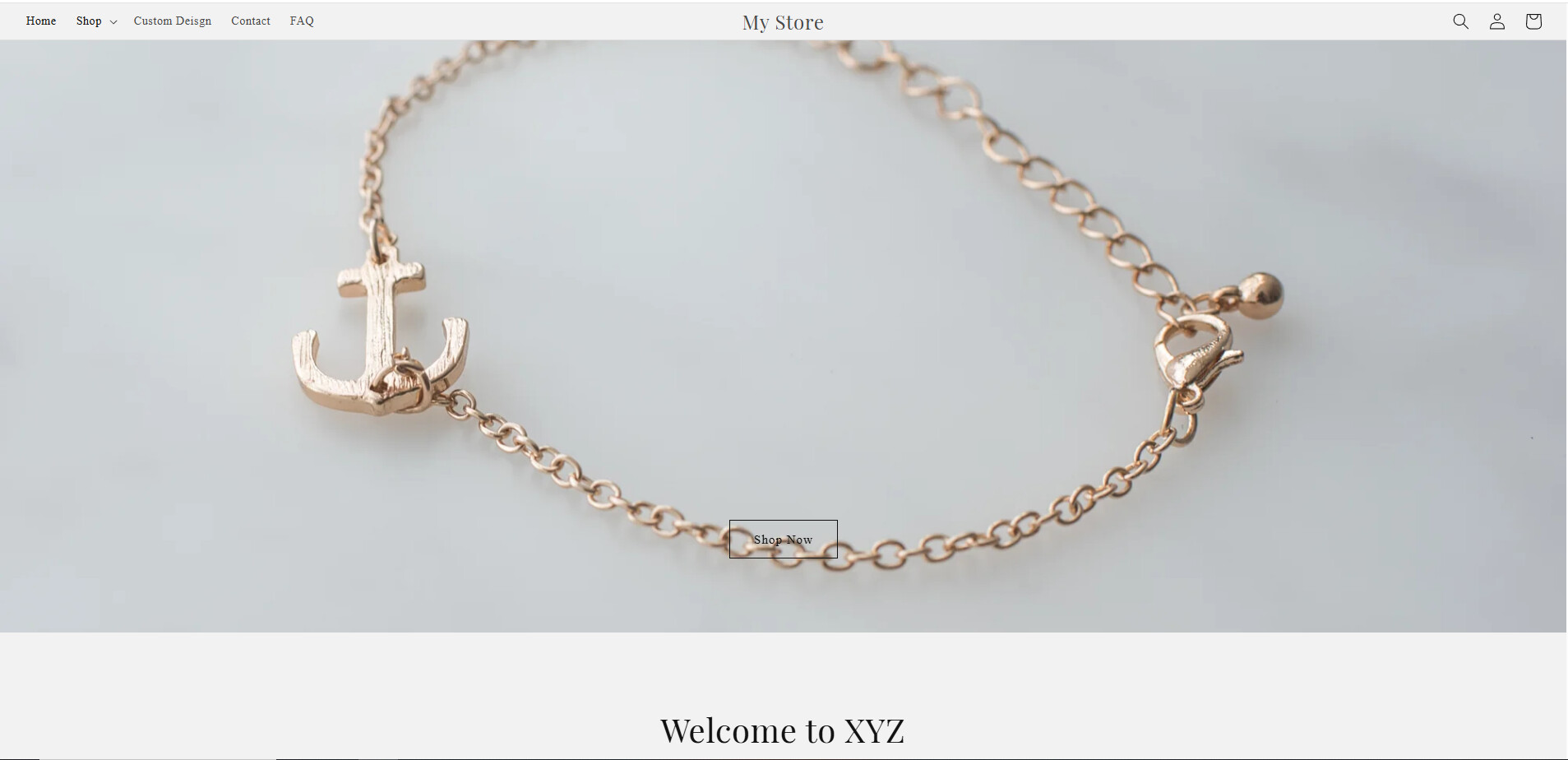
I was trying to make the header transparent, but somehow it just changed to that, I have replace the header.liquid and theme.liquid files to the default one, but it remains the same. How can I change it back to the default Dawn theme header?

A user encountered an issue where their Shopify Dawn theme header became misaligned after attempting to make it transparent. Despite replacing the header.liquid and theme.liquid files with defaults, the header remained left-aligned instead of centered.
Initial Solutions Offered:
Resolution:
The issue was resolved in two steps by adding custom CSS to theme.liquid (above the </body> tag):
.header__inline-menu with left margin adjustment.header__icons with right padding adjustmentThe user confirmed the solution worked after the second CSS adjustment, which fine-tuned the spacing on both sides of the header for proper center alignment.
Hi
I was trying to make the header transparent, but somehow it just changed to that, I have replace the header.liquid and theme.liquid files to the default one, but it remains the same. How can I change it back to the default Dawn theme header?
Hey @Stmz
Welcome to Shopify Community! Can you share your Store URL so I can have a look on it? Also, if you have password enabled then please share the password as well. Your cooperation would be greatly appreciated.
Best Regards,
Moeed
https://a9cafm-y3.myshopify.com/
Password: ealtai
https://a9cafm-y3.myshopify.com/
Password: ealtai
Hello @Stmz
header.header.header--middle-center.header--mobile-center.page-width.header--has-menu.header--has-account {
margin: auto!important;
}
Hello @Stmz
Go to online store ----> themes ----> actions ----> edit code ----> base.css
add this code at the end of the file and save.
#shopify-section-sections--16815864152143__header header {
margin: 0 auto;
}
result

If this was helpful, hit the like button and accept the solution.
Thanks
I added the code, but it still looks the same.
I don’t see there are any margin: 0 !important set with header tag in the header.liquid.
Hello @Sayed_Safin
please go to the header.liquid and theme.liquid files, search for this ID — #shopify-section-sections–16815864152143__header header, and remove the margin from it: margin: 0 !important;
I see, but I’ve searched both files and I don’t see that line of code anywhere.
Hey @Stmz
Follow these Steps:
Go to Online Store
Edit Code
Find theme.liquid file
Add the following code in the bottom of the file above tag
RESULT:
If I managed to solve your problem then, don’t forget to Like it and Mark it as Solution!
Best Regards,
Moeed
Hello @Stmz
Kindly share your store access so that I can check and update you accordingly.
Problem has been solved, thank you
Hi Moeed,
That works, but it still looks kind of off. The right side is fine, but the left side – “Home” is still left aligned, that’s what I want to change, I want that to move closer to the center center.
Still appreciate your help tho!
Hey @Stmz
Keep the previous code and add this new code above in the end of theme.liquid file
.header__inline-menu {
    margin-left: 20px !important;
}
.header__icons {
    padding-right: 30px !important;
}
RESULT:
If I managed to solve your problem then, don’t forget to Like it and Mark it as Solution!
Best Regards,
Moeed
It worked, thank you!