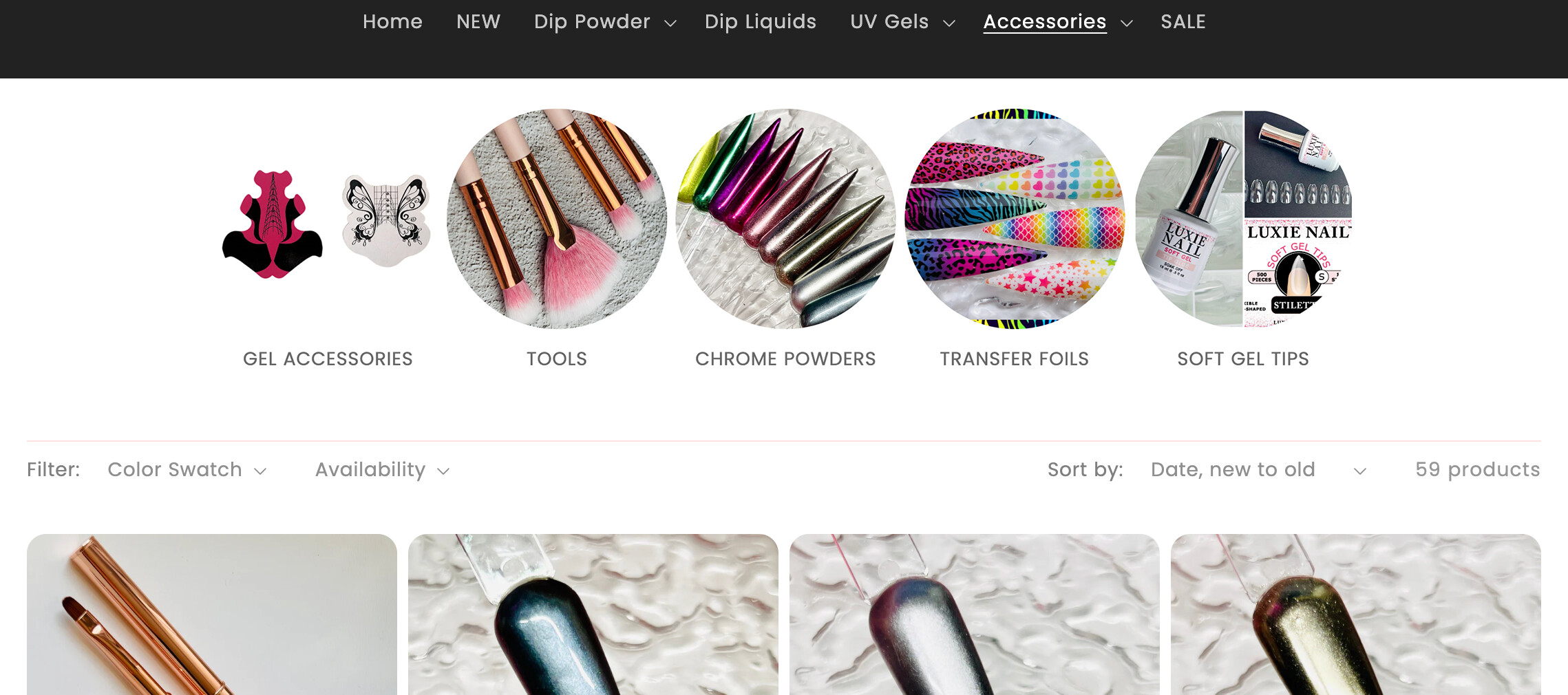
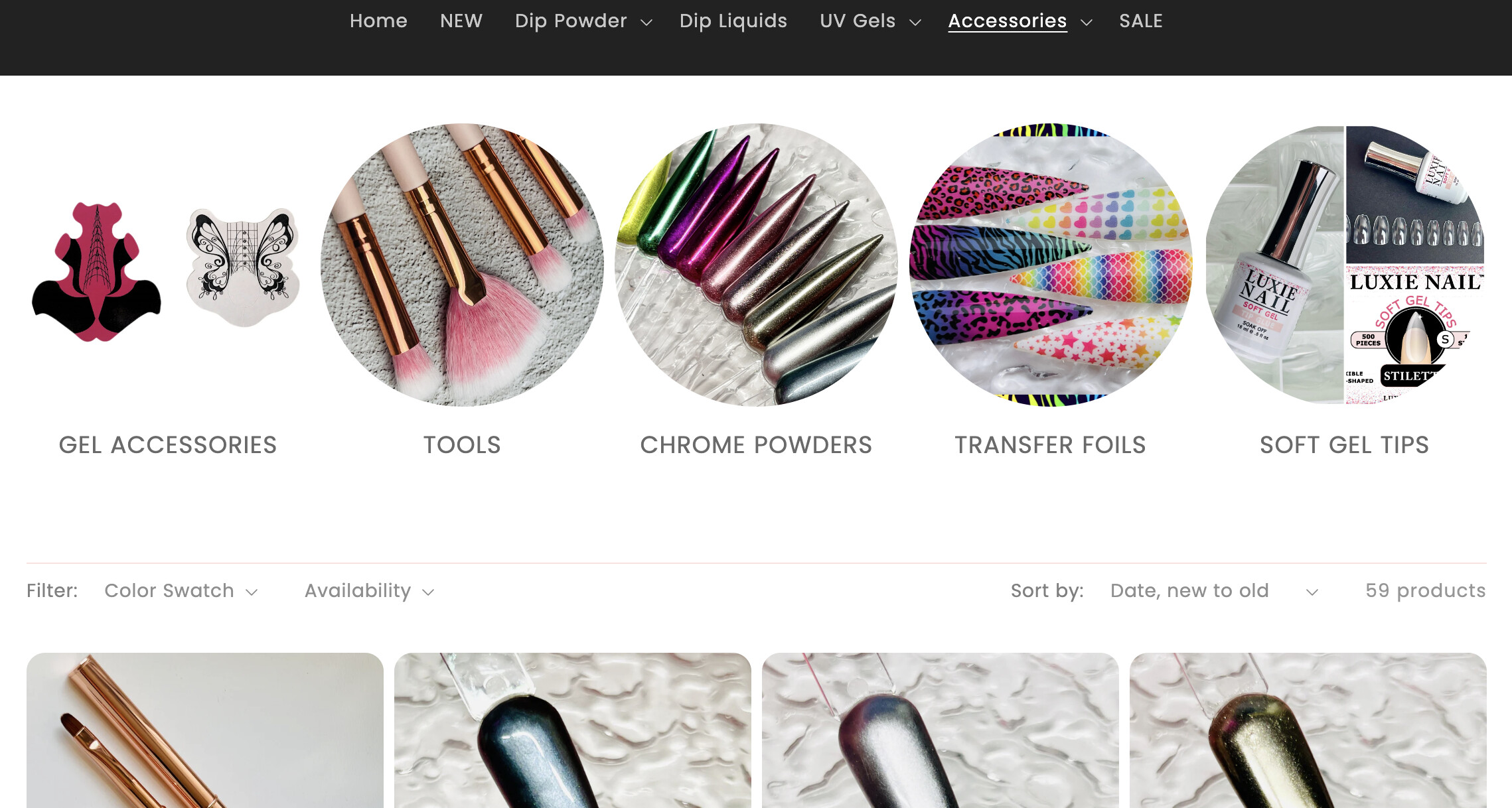
I would like to change the display size of the collection list images. What code can I add to the collection list custom css to display them like the 1st photo?
1 Like
Hi @mollycakes ,
Can you please provide us the store URL and password (if enabled) so our team can support you?
Thank you. I am currently working in this collection page.
https://luxienail.com/collections/accessories
although the theme I am trying to edit is not yet published. It is for Dawn 15.0. I would like the images round as shown but much smaller.
Hi @mollycakes ,
You can follow these steps to make the effect
-
Open Online Store > Theme > Edit Code
-
Find and open the base.css (or theme.css, custom.css) file
-
Paste the code snippet below at the bottom of the file and hit save
.collection-list {
    /* You can change this value to change the gap between the collection card */
    column-gap: 5px;
    justify-content: center;
}

.collection-list .card {
    display: flex;
    justify-content: center;
    align-items: center;
}

.collection-list .card .card__inner {
    /* You can change this value to change the size of the collection images */
    width: 100px;
    border-radius: 50%;
}

.collection-list .card .card__inner .card__media {
    border-radius: 50%;
}
Here is the result

Hope this helps you solve the issue.
Please don’t forget to Like and Mark it as an Accepted Solution if you find this helpful. Thank you!
1 Like
This is perfect! Thank you! Is there also something I can add to make the text slightly smaller?
Hi @mollycakes
Check this one.
- From you Admin page, go to Online Store > Themes
- Select the theme you want to edit
- Under the Asset folder, open the main.css(base.css, style.css or theme.css)
- Then place the code below at the very bottom of the file.
.collection-list .card__inner {
    border-radius: 50% !important;
}
.collection-list .card__inner .card__media {
      border-radius: 50% !important;
}
-
And Save.
-
result:

Please don’t forget to Like and Mark Solution to the post that helped you. Thanks!
You can add this code snippet to the bottom of the base.css file to make the text smaller
.collection-list .card .card__content .card__heading {
    /* You can change this value to fit your preference */
    font-size: 12px;
}
It’ll look like this

Hope this helps you solve the issue.
Thank you! This didn’t work for me but I added the following to the Custom CSS block and it worked out. Not sure if that is the correct way but it seems to work.
Show More
markup .full-unstyled-link { text-decoration: none; color: currentColor; display: block; font-size: 14px; }
If you use that CSS, other text might change as well
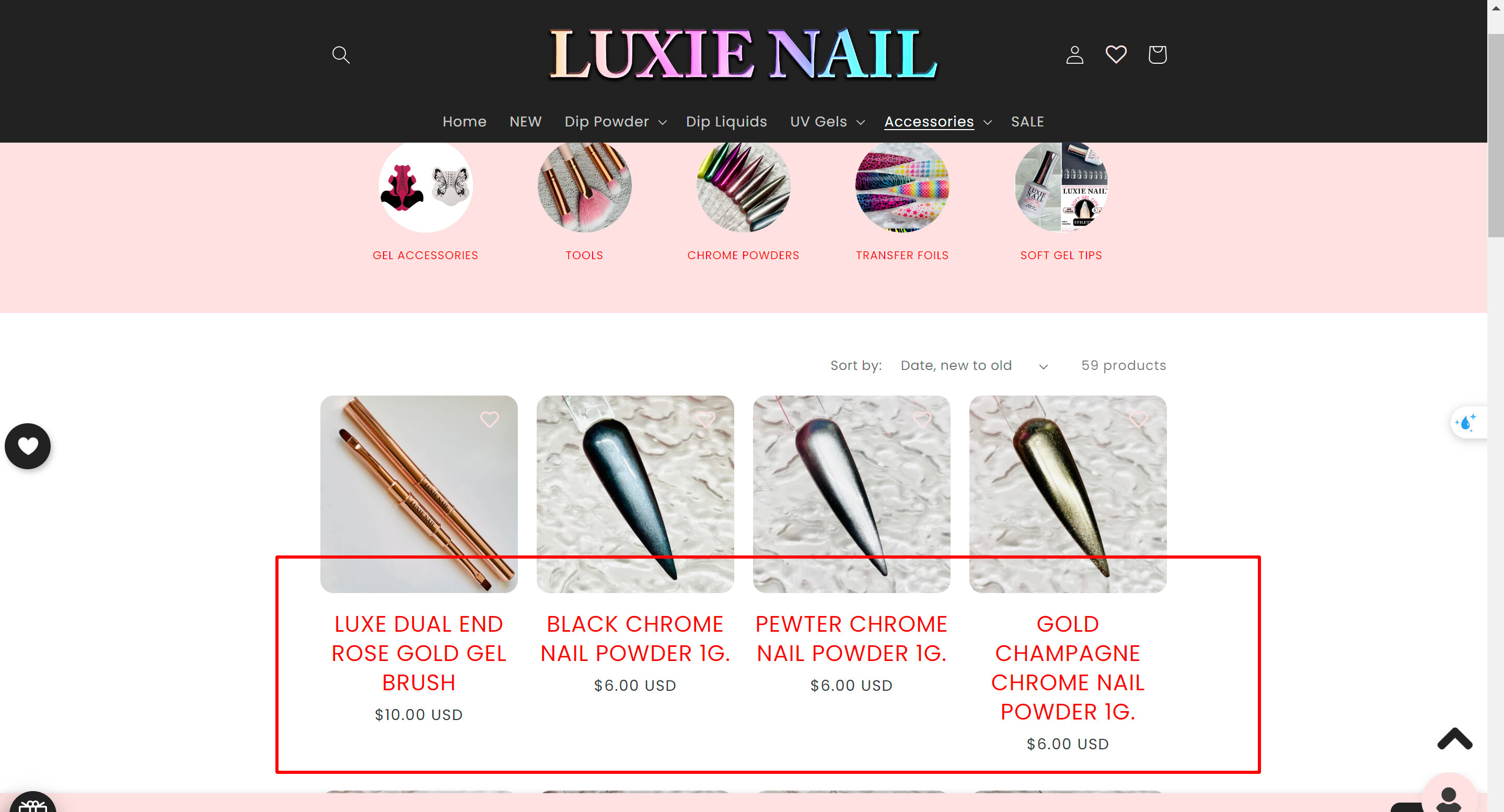
You can try again applying this code snippet to the base.css file
.collection-list .card .card__heading a.full-unstyled-link  {
    /* You can change this value to fit your preference */
    font-size: 12px !important;
}
1 Like
Perfect! Thank you for your help! 
1 Like