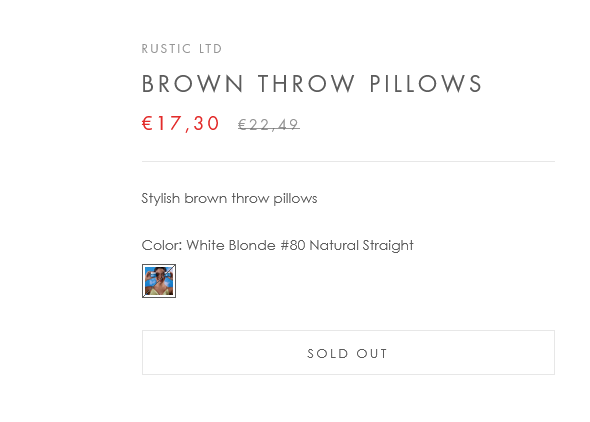
I have uploaded my image swatches – but they are showing as white on the right hand side. How can I get them to show the image on the right, and display the image when clicked?
Store = http://is-salon-yaletown.myshopify.com
Product = https://www.issalonvancouver.com/products/bellami-volume-weft
EBOOST
July 29, 2024, 9:44pm
2
Hi @isSalon ,
I think it’s related your setting. You are using Prestige theme. You can check document here https://support.maestrooo.com/article/718-configuring-color-swatches .
I’ve tried following those settings but they don’t show on my theme. I can’t seem to figure out how to fix it
EBOOST
July 29, 2024, 10:13pm
4
Hi,
Could you go to Theme → Settings → color swatch → take a screenshot?
I tried on my store. It is showing: White Blonde #80 Natural Straight:pexels-photo-13641290.jpg
White Blonde #80 Natural Straight → Color
pexels-photo-13641290.jpg → image name
You try to add content below:
White Blonde #80 Natural Straight:BM_website_400x.png
Ash Blonde #60 Natural Straight:BM_website_400x.png
Beige Blonde #90 Natural Straight:BM_website_400x.png
Golden Blonde #610 Natural Straight:BM_website_400x.png
Honey Blonde #20/#24/#60 Natural Straight:BM_website_400x.png
Sandy Blonde/Ash Blonde #24/#60 Natural Straight:BM_website_400x.png
Butter Blonde #10/#16/#60 Natural Straight:BM_website_400x.png
Strawberry Blonde #27 Natural Straight:BM_website_400x.png
Dirty Blonde #18 Natural Straight:BM_website_400x.png
Light Ash Brown #9 Natural Straight:BM_website_400x.png
Ginger #30 Natural Straight:BM_website_400x.png
Ash Brown #8 Natural Straight:BM_website_400x.png
Chestnut Brown #6 Natural Straight:BM_website_400x.png
Dark Chestnut Brown #10 Natural Straight:BM_website_400x.png
Hazelnut Brown #5:BM_website_400x.png
Chocolate Brown #4 Natural Straight:BM_website_400x.png
Walnut Brown #3 Natural Straight:BM_website_400x.png
Dark Brown #2 Natural Straight:BM_website_400x.png
Mochachino Brown #1C Natural Straight:BM_website_400x.png
Off Black #1B Natural Straight:BM_website_400x.png
Jet Black #1 Natural Straight:BM_website_400x.png
Spiced Crimson #570 Natural Straight:BM_website_400x.png
Mulberry Wine #510 Natural Straight:BM_website_400x.png
Strawberry Dream #590 Natural Straight:BM_website_400x.png
Cinnamon Mocha #550 Natural Straight:BM_website_400x.png
Pure Platinum #88:BM_website_400x.png
Icy Silver #66:BM_website_400x.png
Beach Blonde #613:BM_website_400x.png
Ash Brown/Ash Blonde #8/#60 Balayage Straight:BM_website_400x.png
Cool Mochachino Brown/White Blonde #1CC/#80:BM_website_400x.png
Dark Brown/Chestnut Brown #2/#6 Balayage Straight:BM_website_400x.png
Mochachino Brown/Dirty Blonde #1C/#18 Balayage Straight:BM_website_400x.png
Midnight Ice Blonde #8C/60:BM_website_400x.png
Sunkissed Golden Blonde #18/#60/#610 Marble Blends Straight:BM_website_400x.png
Caramel Blonde #18/#46 Marble Blends Straight:BM_website_400x.png
Bronde #4/#22 Marble Blends Straight:BM_website_400x.png
White Gold #18/16/24 Marble Blend:BM_website_400x.png
Golden Amber Blonde #18/#6 Highlights Straight:BM_website_400x.png
Hot Toffee Blonde #6/#18 Highlights Straight:BM_website_400x.png
Ash Brown/Golden Blonde #8/#610 Ombre Straight:BM_website_400x.png
Chocolate Bronzed #4/#16 Ombre Straight:BM_website_400x.png
Dark Brown/Creamy Blonde #2/#24 Ombre Straight:BM_website_400x.png
Mochachino Brown/Chestnut Brown #1C/#6 Ombre Straight:BM_website_400x.png
Sandy Blonde/Ash Blonde #24/#60 Sombre Straight:BM_website_400x.png
Dirty Blonde/Platinum #18/#70 Sombre Straight:BM_website_400x.png
Raspberry Sorbet #520/#580:BM_website_400x.png
Chocolate Mahogany #1B/#2/#4 Sombre Straight:BM_website_400x.png
Ash Brown/Golden Blonde #8/#610 Rooted Straight:BM_website_400x.png
Walnut Brown/Ash Blonde #3/#60 Rooted Straight:BM_website_400x.png
Brown Blonde #8/#12 Rooted Straight:BM_website_400x.png
Mochachino Brown/Caramel Blonde #1C/#18/#46 Rooted Straight:BM_website_400x.png
Vanilla Latte #8/8/60 Hybrid Blend:BM_website_400x.png
Pearl Blonde #8C/88 Hybrid Blend:BM_website_400x.png
You need replace “BM_website_400x.png” with your file.
It doesn’t allow me to attach the screenshot but I dont seem to have the colour swatch option. It just has: