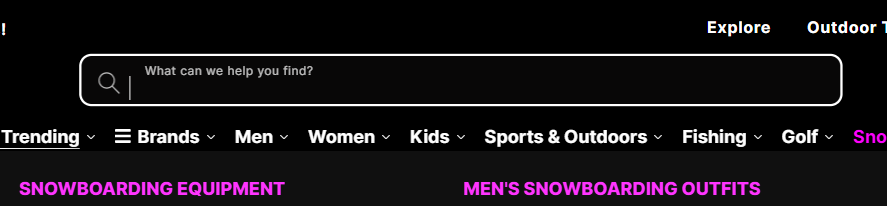
Modify Search Bar to be square edged?
Trying to target the search bar, not sure if its field, or search__input - but I want to make it more square edged.
I know once I change the before I also need to change the after?
www.extremekool.com
Password01
I tried border radius didnt work though
IMAGE1: My current search bar

IMAGE2: Search bar I would like mine to look like:

@Brian-A please add this css to the very end of your base.css file and check,
Shopify Admin → Online Store ->Theme → Edit code → base.css
.search-modal__form .field:before, .search-modal__form .field:after, .search-modal__form .field__input{border-radius: 10px;}
1 Like
Hi @Brian-A
Try this one.
- From your Shopify admin dashboard, click on “Online Store” and then “Themes”.
- Find the theme that you want to edit and click on “Actions” and then “Edit code”.
- In the “Assets” folder, click on “base.css, style.css or theme.css” file, depending on which file your theme uses to store its CSS styles. At the bottom of the file, add the following CSS code:
form.search.search-modal__form .field:after,
form.search.search-modal__form .field__input  {
    border-radius: 10px !important;
}
Your Feedback Matters! Please mark the solution and give likes to posts that helped you. Your appreciation fuels our motivation to assist you better!
1 Like
Hello,
This is your current code add it to your base.css and change it to 0 and keep important on it and it will work.
:root {
–inputs-radius: 20px !important;
}
1 Like
input.search__input.field__input::before, input.search__input.field__input::after, .form.search.search-modal__form::before, .form.search.search-modal__form::after {
  border-radius: 10px !important;
}