The pink box in the header is really annoying, it is inactive and looks terrible. Please help!
Topic summary
A store owner wants to remove a pink ‘Cloud Store’ box appearing in their website header at edevice.store.
Multiple solutions were proposed:
- Edit the logo image: Make the background transparent in the image file itself
- Hide via CSS code: Add custom CSS to theme.liquid or Custom CSS section to hide the logo wrapper entirely using
display: none !important;
Both CSS approaches would remove the entire logo along with the pink background.
Current Status: The original poster confirmed a solution would work but lacks the necessary permissions to modify that section. They discovered this requires upgrading their Shopify plan to access theme code editing capabilities. They’ve decided to keep the pink box temporarily until their store generates sales.
1 Like
Hi @Dallaskj
Do you mean the box inside your logo? You need to edit the image and make it transparent.
Hi, @Dallaskj
Do you mean the logo image? If so, you can try this code by following these steps:
Step 1: Go to the online store ->Theme ->Edit Code.
Step 2: Find the theme.liquid file and add the following code before the tag
.header__heading-logo-wrapper {
   display: none !important;
}
Result:
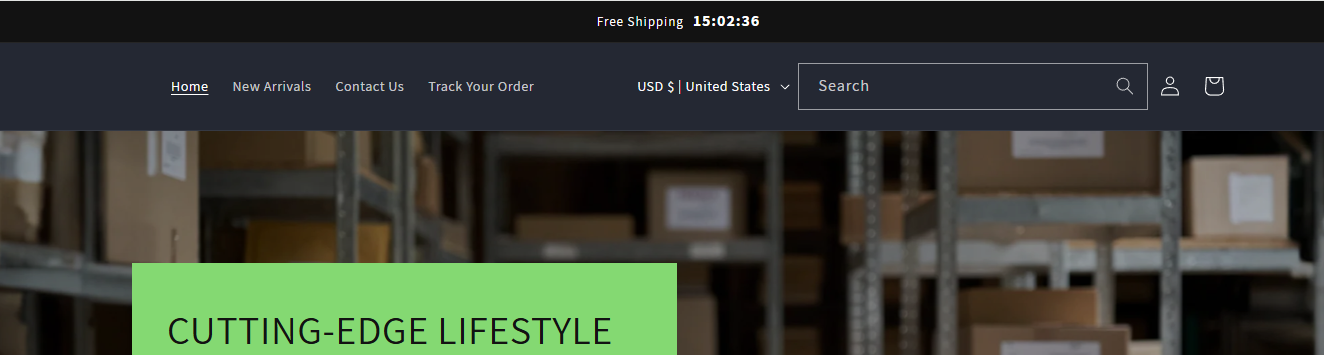
Hopefully it will help you. If yes then Please don’t forget hit Like and Mark it as solution!
HI @Dallaskj ,
Your logo has pink background, it is not possible to delete this backgound. If you want to delete, you will need to delete the logo as well.
Here is the steps to delete the logo and the pink backgound:
Step 1: Shopify admin > Online store > Customize: https://prnt.sc/XQ6IDB99kUCd
Step 2: From the left menu > Theme settings > Open Custom CSS: https://prnt.sc/ypQ7nly2wv27
Step 3: Copy the code below and paste it there
Here is the code for step 3:
.header__heading-logo-wrapper {
    display: none !important;
}
Here is the result:

Hope this can helps!
Best,
Daisy
1 Like
It appears that this answer will work!
However, I can’t modify that section so there is likely a user rights issue.
Update: yes it appears that I need to upgrade my plan for the access and rights to remove that particular logo. However nothing has sold yet so i’ll live with it for now while I tweak it as needed.