Hello,
I have been trying to set this up for hours, banging my head against the wall. I have a collection list on the main page using the Tinker theme, I am trying to make the images appear round. I have asked the Shopify AI to generate the CSS code that will do this, none of it’s suggestions work though. It’s gone as far as generating the following code after multiple iterations:
#shopify-section-template--27738512556363__collection_list_VkF88X .collection-card.border-style[style] {
  --border-radius: 999px !important;
  border-radius: 999px !important;
}

#shopify-section-template--27738512556363__collection_list_VkF88X .image-block.collection-card__image.border-style[style] {
  --border-radius: 999px !important;
  border-radius: 999px !important;
  overflow: hidden !important;
}

#shopify-section-template--27738512556363__collection_list_VkF88X .image-block__image {
  border-radius: 999px !important;
}

#shopify-section-template--27738512556363__collection_list_VkF88X * {
  --border-radius: 999px !important;
}
Still, the images are as square as they’ve ever been. I’ve been asked to paste this code to the Theme Settings Custom CSS field instead of the collection list module.
Please could you share ideas? Thank you!
1 Like
Hi @user3559
Welcome to the Shopify Community! Please share your store URL and password (if it’s password-protected), so I can check and provide you with the exact solution.
Best regards,
Devcoder 
Since you are actually trying to work on it, you might as well learn something. Just a little peace of mind. Using this method will send you LIGHT YEARS ahead of other people asking for help… Here’s a step by step.
-
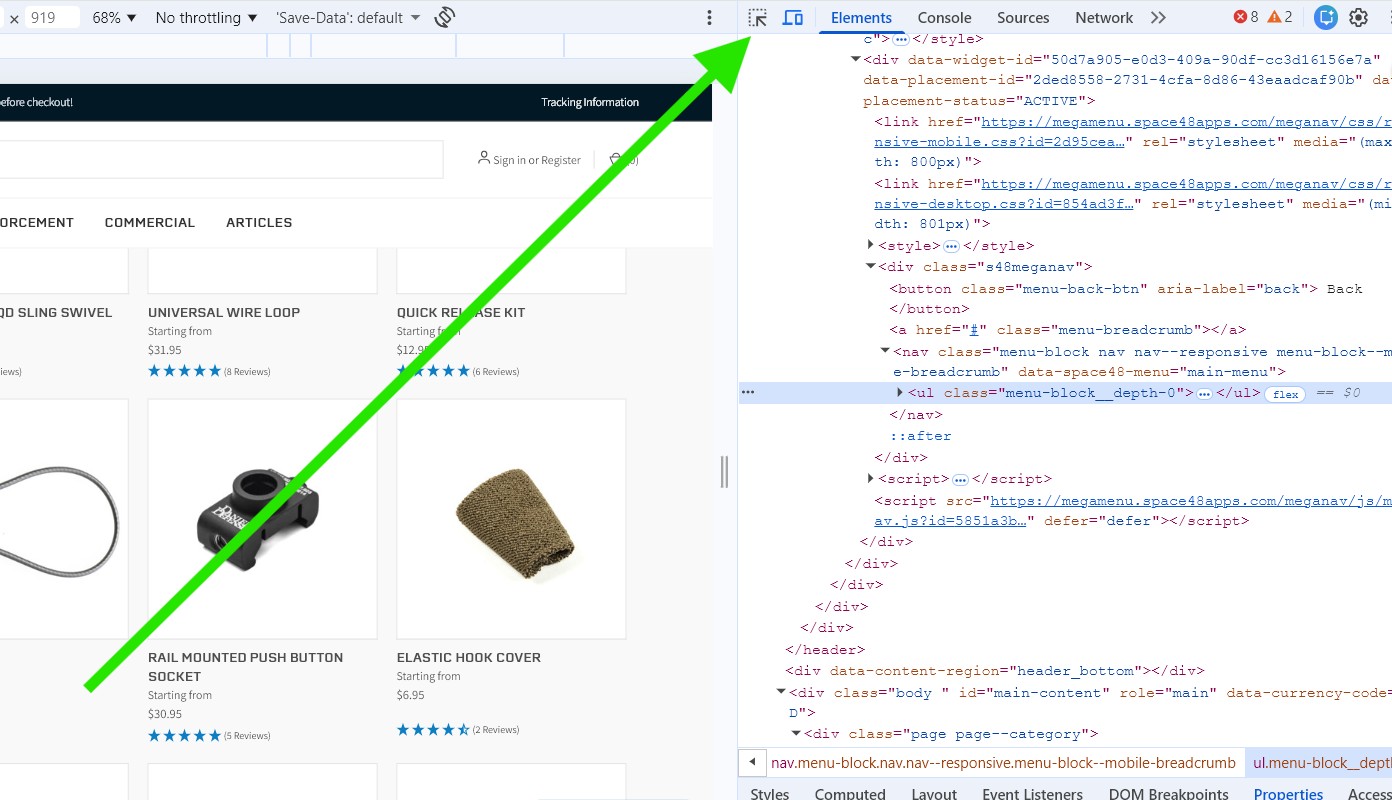
Go to any website. Right click on the page and click “inspect” or similar. If using Chrome it will look like this:
-
The developer tool will show up. Click this icon in the upper left hand corner:
-
Scroll down your webpage and hover over the particular element you want to select:
-
When you click the element, it will be highlighted on the right hand side:
-
Now do the same on your own website. In your Tinker theme, the collection list card will need to be expanded:
-
Now go to your theme editor. Click on Image, and make it square:
-
Now click on “Collection List” and scroll down to “Custom CSS”. This is where you work your magic:
-
Your CSS code will have 3 basic parts. Selector, Property, and Value. The selector is most likely going to be the class name with a period before it. Example .image-block The Property is what you want it to do. Border-radius: 10px; Then you put the Property and Value inside a set of Curly Brackets {}
-
You can do % instead of px. Now see the result:
3 Likes
@user3559 can you please share your website page link where you want to make images round?
Please share the link to your store URL so I can give you the code
Wow, thank you so much for your help, this worked like a charm! The tips are extremely useful - I have extensive background in IT but none in HTML/CSS and related, so it was becoming quite infuriating. Your help actually gives me both the stick and the carrot. Thank you!
1 Like