Does anyone know how it is possible that I see activity but no actual purchase on the purchase action pixel?
1 Like
Thanks for your answer. How can I check if the pixel is installed on the Thank you page and order confirmation page? And how to do this?
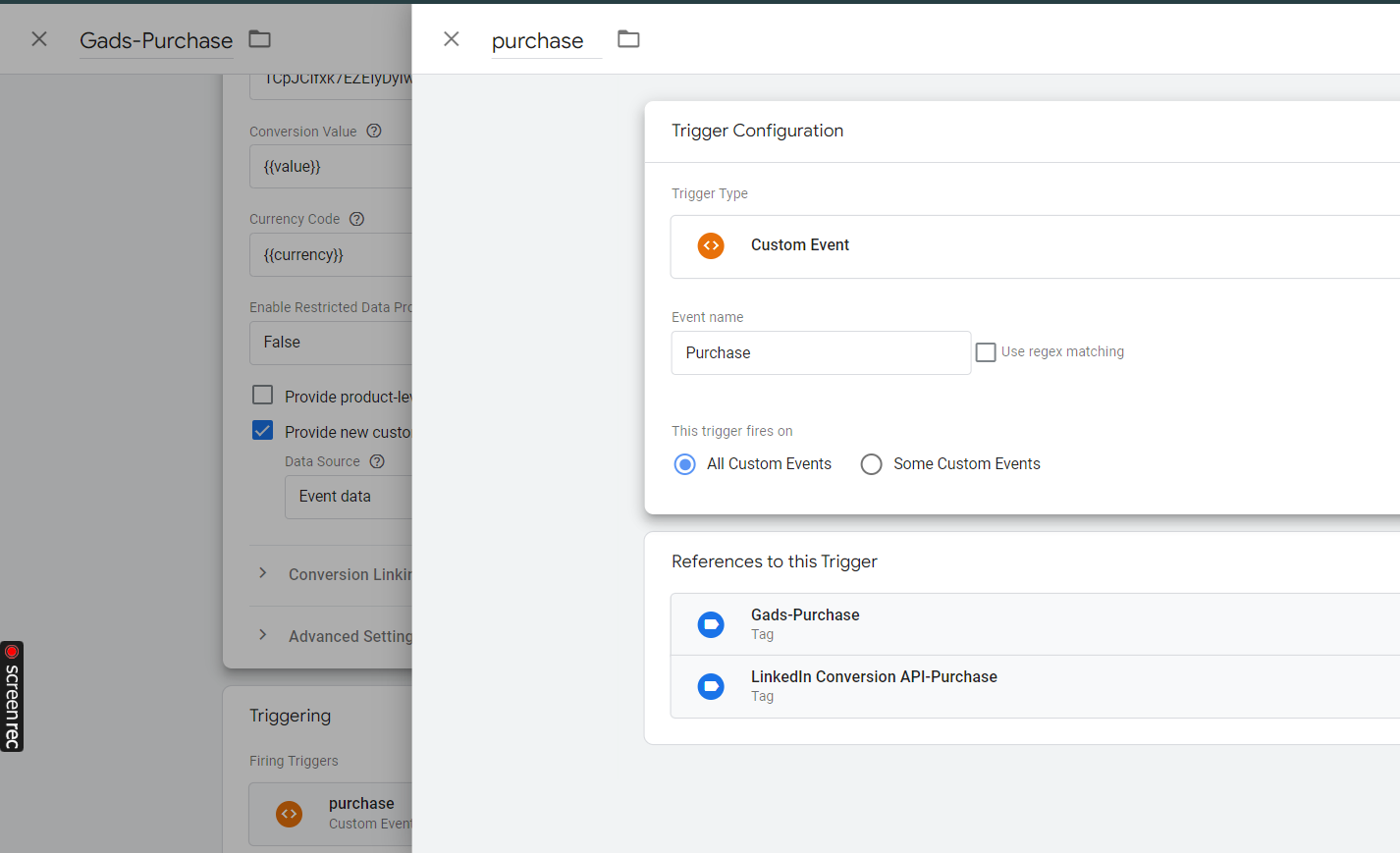
currently I installed the pixel via Tag manager.
Hi Thusbier,
Thanks for your query.
If you are using Google and youtube app for conversion tracking then disconnect the ads account and reconnect.
If the issue still persist consider using Google Tag Manager to configure the google ads conversion goal/purchase goal.
Feel free to ask if you have any questions.
Thanks


1 Like
Here’s how you can check it:
1. Use Google Tag Manager’s Preview Mode- Open GTM Preview Mode: In your GTM workspace, click the Preview button.
- Simulate a Purchase: Complete a test order on your website to trigger the Thank You or Order Confirmation page.
- Verify Tags Firing: Once the Thank You page loads, GTM Preview Mode will show which tags fired. Confirm that the relevant pixel (e.g., conversion tracking tag) is firing on this page.
2. Use Pixel-Specific Tools- For Google Ads Conversion Tag: Use the Google Tag Assistant Chrome extension to verify that the conversion tag is firing. After the Thank You page loads, the extension will indicate whether the tag fired successfully.
3. Validate in Analytics or Reporting Tools- Check your analytics or reporting tool (e.g., Google Analytics, your pixel provider’s dashboard) for the conversion event tied to the Thank You or Order Confirmation page.
- Ensure the pixel is recording the desired data (e.g., purchase value, transaction ID).
By using these methods, you can confirm that the pixel installed via Google Tag Manager is properly firing on your Thank You and Order Confirmation pages.