How can I add an ads.txt file to my site for AdSense?

Topic summary

A Shopify store owner received a critical AdSense warning about a missing ads.txt file that could severely impact revenue. The standard solution doesn’t work on Shopify because uploaded files are hosted on Shopify’s CDN (a different domain), not the main site domain.

Working Solution (most validated):

  • Upload the AdSense-generated ads.txt file via Settings > Files
  • Copy the full CDN URL of the uploaded file
  • Create a URL redirect at Online Store > Navigation > URL Redirects
  • Redirect FROM: /ads.txt TO: the complete CDN URL (e.g., https://cdn.shopify.com/s/files/...)
  • Allow 24-48 hours for Google verification

Common Mistakes:

  • Reversing the redirect direction (putting the CDN URL in the wrong field)
  • Truncating the CDN URL instead of using the complete path
  • Confusing this with domain TXT records for site verification

Alternative Method (less verified):
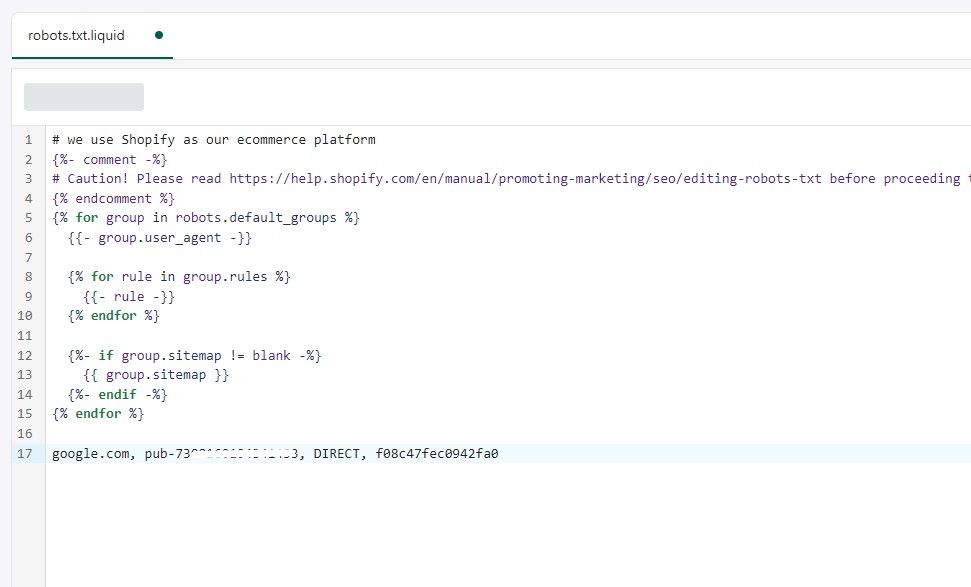
One user suggested adding the AdSense code directly to a robots.txt template via theme code editing, though this approach received less community validation.

Some users reported the Settings > Files option is missing from their Shopify admin, suggesting potential plan-level restrictions.

Summarized with AI on October 29. AI used: claude-sonnet-4-5-20250929.

Hi guys,

Recently I’ve been getting an Red alert at the top of my Adsense account that says:

“Earnings at risk – One or more of your sites does not have an ads.txt file. Fix this now to avoid a severe impact on your revenue.”

How do I add this ads.txt file to my shopify site? You can see the instructions here: https://support.google.com/adsense/answer/7532444?hl=en-GB

I searched this forum and someone asked this in 2017 but no one could answer it. https://community.shopify.com/c/Shopify-Discussion/How-to-add-an-Ads-txt-file-to-a-Shopify-site/td-p/430788

1 Like

Did you try the redirect method outlined in the post you linked?

Main issue is assets go on shopifys cdn with is a different domain that .myshopify.com

The work around suggested doesn’t work for the required txt file, it only allows google to verify your domain. I’ve tried using the code they provide as a txt record as well but it did not work. This is so frustrating. I asked Shopify after Google instructed me to contact my domain administrator and they provided me the same link in the original question above. I tried it just to see if maybe it would work and it didn’t. Disheartening that our own platform can’t assist with this.

You mean as Domain TXT record in your domain ?

Or as a file you added to the shopify admin assets?

Is shopify your domain name registrar?

https://help.shopify.com/en/manual/domains/managing-domains/advanced-settings

Hi, we can solve this for you.

https://experts.shopify.com/prosale/domain-setup

We’ll need your ads.txt file + full access to your store and Google will verify within 24-48 hours (or your money back!).

Clean, white-hat methods only - we do this on our own stores too.

Did you end up getting it to work? It still shows up on mine.

Yes!
We got this to work and the warning’s gone.
What steps did you take in your attempt to solve your issue?

Here is the solution to this issue:

  • Log in to your Shopify store account
  • Go to Settings > Files
  • Take the generated ads.txt file from AdSense
  • Upload the file on Shopify
  • Copy the URL of the file

  • Go to Online Store > Navigation > Url Redirects
![Shopify-Navigation-URL-Redirects|480x428](upload://7CkjtJcphIr51xs6Zbg2WxuOAbM.png)
  • Create a redirect rule from /ads.txt to /file_url

Hope this helps everyone and please allow 24 - 48 hours for your Adsense account to approve your txt file has been uploaded to your domain server.

20 Likes

Your instructions are the most helpful one I’ve come across, I’ve been trying to solved this problem for my site for quiet sometime now. Thanks for your help really appreciate it.

1 Like

Thank you for such a great answer.

1 Like

If you’re still seeing the warning after implementing the solution we can help.

Hello

Its not working is deleting the “cdn.shopify” part and just leaving /s/files/1/2501/7648/files/Ads.txt

and the resulting links goes to nowhere https://www.iwaymagazine.com/ads.txt

@iway You need to use the entire url and you need to switch your inputs around. Your issue is that the url and ads.file are in the wrong boxes.

Example:

Redireccionar desde

/ads.txt

Redireccionar hacia

Place your https://cdn.shopify.com/s/files …url

2 Likes

Here’s how you can do it:

  1. Log in to your Shopify account and go to the Online Store section.

  2. Click on the Themes option and then click on the Actions button next to your current theme.

  3. Select Edit Code from the drop-down menu.

  4. In the left-hand menu, click on the “Templates” folder and then click on “Add a new template”.

  5. In the pop-up window, select a template to create: robots.txt

  6. Copy and paste the following code into the robots.txt at the bottom::

    google.com, pub-0000000000000000, DIRECT, f08c47fec0942fa0

    Replace “pub-0000000000000000” with your unique AdSense publisher ID.


  7. Save the file and you’re done!

    It may take a few days for the changes to take effect, but once they do, your AdSense ads should start displaying correctly.

2 Likes

I’m trying to verify my app-ads.txt file for admob for my mobile app. Will this work for that?

I couldn’t find redirect rule.

All good now.

Thanks

Hi ,

I am not able to find “File” option in my admin setting to setup ads.txt. Can you guide me to setup the same…thanks

My store name is www.svbventures.in

Trevor, Is the redirect supposed to be an actual document file? And if so, what goes on the document?

I’ve tried adding to the snippets, but didn’t find an URL to use to redirect. I added a word document with the ads.txt on it. I’m lost I guess!

worked. thanks.