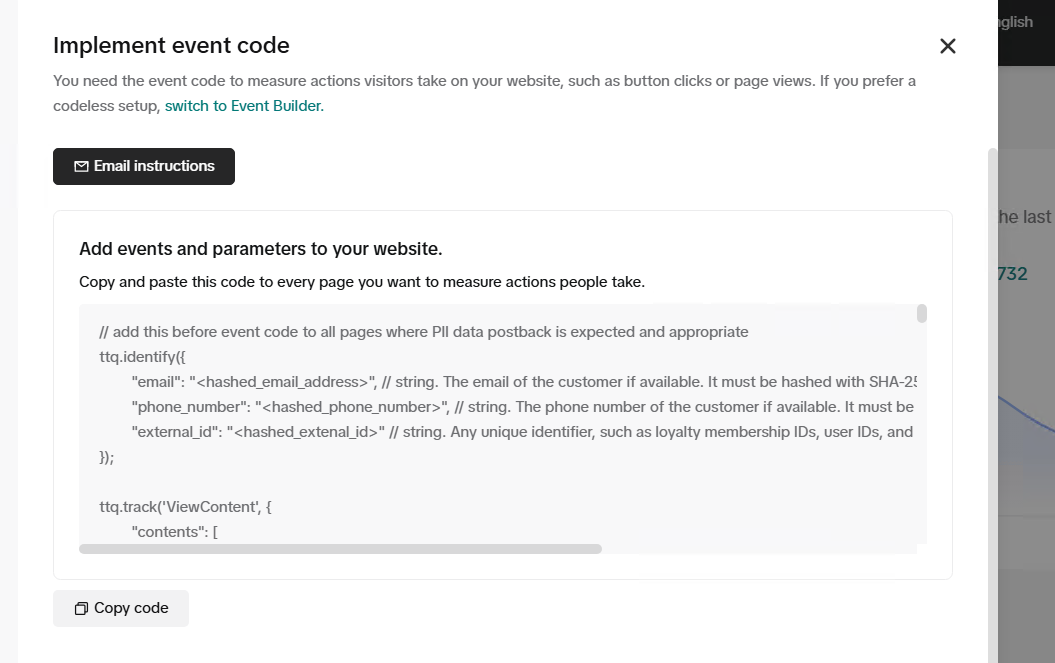
I’m very confused about events and parameter code. I’m not sure where to put this code into the website. I need help regarding to this. Where I need to put this code into the website to work properly. “Add events and parameters to your website”
Topic summary
A user is confused about where to place pixel event and parameter code in their Shopify website for proper tracking functionality.
Three implementation methods are provided:
1. Shopify’s Built-in Integration (Easiest)
- Navigate to Shopify Admin > Settings > Customer events
- Add custom pixel and paste base Facebook Pixel code
- Automatically tracks ViewContent, AddToCart, InitiateCheckout, and Purchase events
2. Manual Custom Event Code
- For global tracking (page views): Insert code in theme.liquid file within section via Online Store > Themes > Edit Code
- For specific pages: Add code to individual template files (product.liquid, cart.liquid, etc.)
- For purchase tracking: Add event code in Settings > Checkout > Order status page under Additional Scripts
3. Google Tag Manager (Advanced)
- Install GTM container code in theme.liquid and sections
- Manage multiple tracking pixels (Facebook, Google Ads, TikTok) from one centralized platform
The built-in integration is recommended for basic tracking, while manual placement suits custom event needs. GTM is ideal for managing multiple advertising platforms simultaneously.
I totally get why you’re feeling confused—Shopify’s event tracking can seem a bit tricky at first, but I’ll break it down in a simple way so you know exactly where to place your pixel event and parameter code to make it work properly.
Understanding the Issue:
From what I see, you’re trying to add event tracking (probably for Facebook Pixel, Google Analytics, or another tracking tool) and need to know where exactly to insert the event and parameter code in your Shopify store. The location of this code depends on what you’re tracking (page views, purchases, add-to-cart actions, etc.) and which tracking method you’re using (Shopify’s built-in setup or manually adding the code).
Solution: Where to Put Your Pixel Event and Parameter Code#### 1. If You’re Using Shopify’s Built-in Facebook Pixel Integration (Easiest Method)
If you’re tracking events using Facebook Pixel, Shopify has a built-in integration, and you don’t need to manually add event codes everywhere. Just follow these steps:
- Go to Shopify Admin > Settings > Customer events.
- Click Add custom pixel.
- Paste your base Facebook Pixel code in the provided field. Shopify will automatically track key events like ViewContent, AddToCart, InitiateCheckout, and Purchase.
2. If You Need to Add Custom Event Code Manually
If you need to add custom events (e.g., tracking clicks on a button or form submissions), you’ll need to insert your event code into Shopify’s theme files.
a. Adding Event Code to the Header (For Global Tracking)
If you’re tracking general actions like page views, you should place the pixel inside the section of your theme.
- Go to Online Store > Themes > Actions > Edit Code.
- Open theme.liquid.
- Look for the section and paste your event code right before the closing tag.
Example:
b. Adding Event Code to Specific Pages (For Specific Actions)
If you’re tracking specific actions like Add to Cart, you’ll need to insert the event in the right template file.
- Track Add to Cart Events
- Go to Edit Code > Sections > product-form.liquid.
- Add this event inside the tag:
- Track Purchases (Order Confirmation Page)
- Go to Settings > Checkout > Order status page.
- Scroll down to Additional Scripts and add:
- This ensures that a Purchase event is fired when someone completes an order.
3. Using Google Tag Manager (Advanced Method)
If you want to manage multiple tracking pixels (Google Ads, Facebook, TikTok, etc.) in one place, Google Tag Manager (GTM) is a better option. You just need to install the GTM container code in your theme.liquid file inside the and sections, and then manage event triggers from GTM.
Final Thoughts
If you just want basic event tracking, Shopify’s built-in integration is the easiest way. But if you need to track custom actions, you’ll need to place the event code manually in the right theme files. If you’re running multiple ad platforms, using Google Tag Manager can simplify things.
Hope this helps! If you need extra help, just let me know asap. Thanks!
Daisy.